
This article is for dispensaries that are not eligible for Form 1099-K. To check eligibility, see US dispensaries: Reporting your income with Form 1099-K. A 1099-K is issued only when your state’s thresholds are met; eligibility is determined by the financial address on your account.
This content is intended for general informational purposes only and should not be construed or relied upon as tax, legal or financial advice, or applicable to your particular situation. You should consult with your own tax advisor regarding your tax obligations. The views expressed in any of these resources do not represent the views and are not affiliated with or endorsed by Fullscript in any way.
Accessing your financial reports
To assist in your financial record keeping, reports can be viewed and exported from your account. These reports, available after your first successful payout, record payout history and sales activity can be used to calculate Fullscript earnings through your account.
To access these reports:
- Click the Analytics tab.
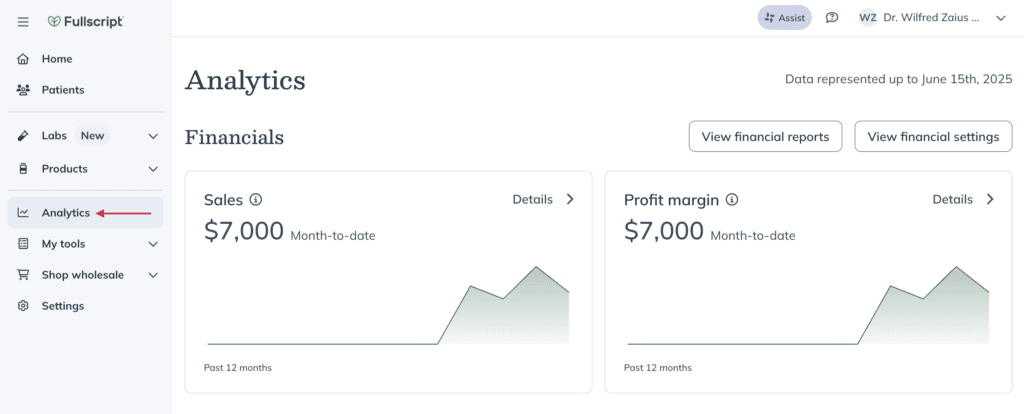
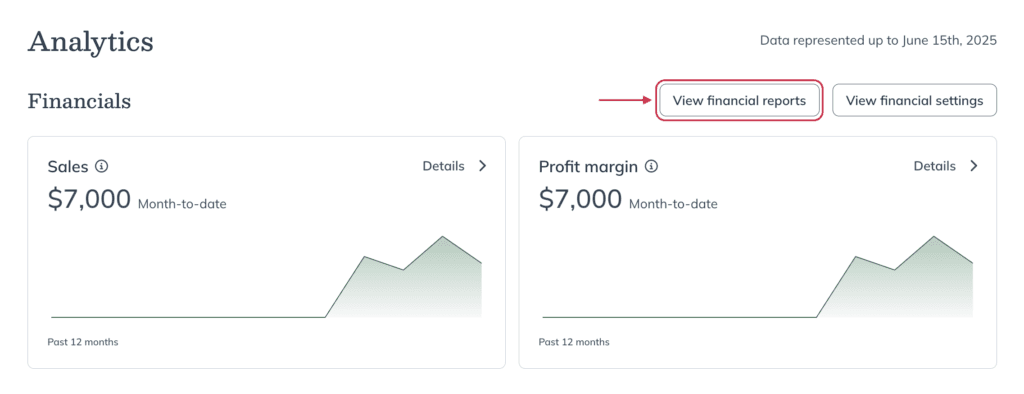
- Click View financial reports.
Account activity and balance report summary
The Account activity and balance report lists transactions within the selected time period, breaking down information such as net sales, cost of sales, and your net income.
You can download the Account activity and balance report from the Financial Reports page by selecting the desired reporting year, the desired format, and then clicking Download.
You can provide the Account Activity & Balance Report (for applicable tax year) to your tax professional along with your 1099-K and 1099-K export report.
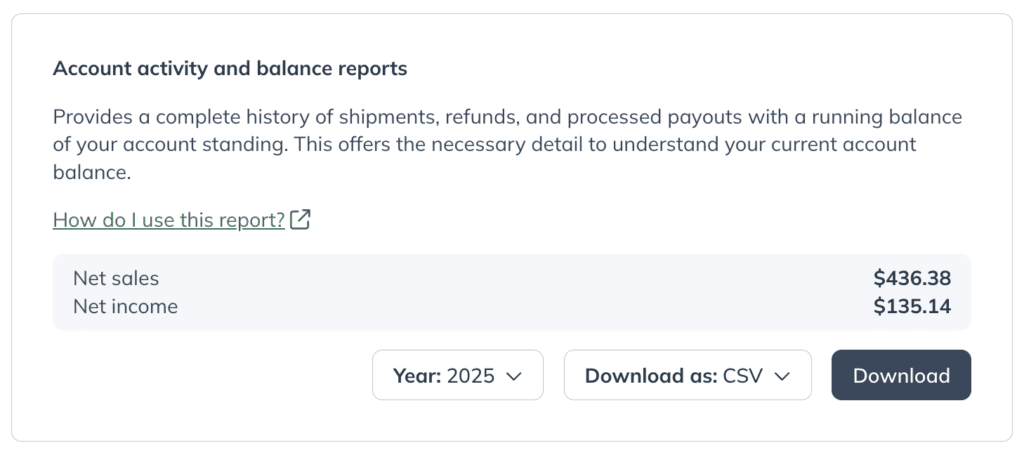
The Account activity and balance report heading on the Financial reports page.
Calculating net sales, cost of goods, and net income
Gross sales, Cost of Sales, and Net Income transacted through your Fullscript account are calculated and displayed in the account activity and balance report summary after selecting a tax year (see example above).
The steps and example below will walk you through how to export this report and understand how these figures are calculated.
Step 1: Download the Account activity and balance report
To download the account activity and balance report:
- Select your name or avatar to open the practitioner menu, then click Financial reports. On mobile devices, select the menu icon ( ), followed by your name or avatar, then tap Financial reports.
- Scroll to the Account Activity and Balance Report heading.
- Select a year.
- Select your preferred file type (Excel or CSV).
- Click Download.
The Account activity and balance report heading on the Financial reports page.
The excel export will resemble the example below.
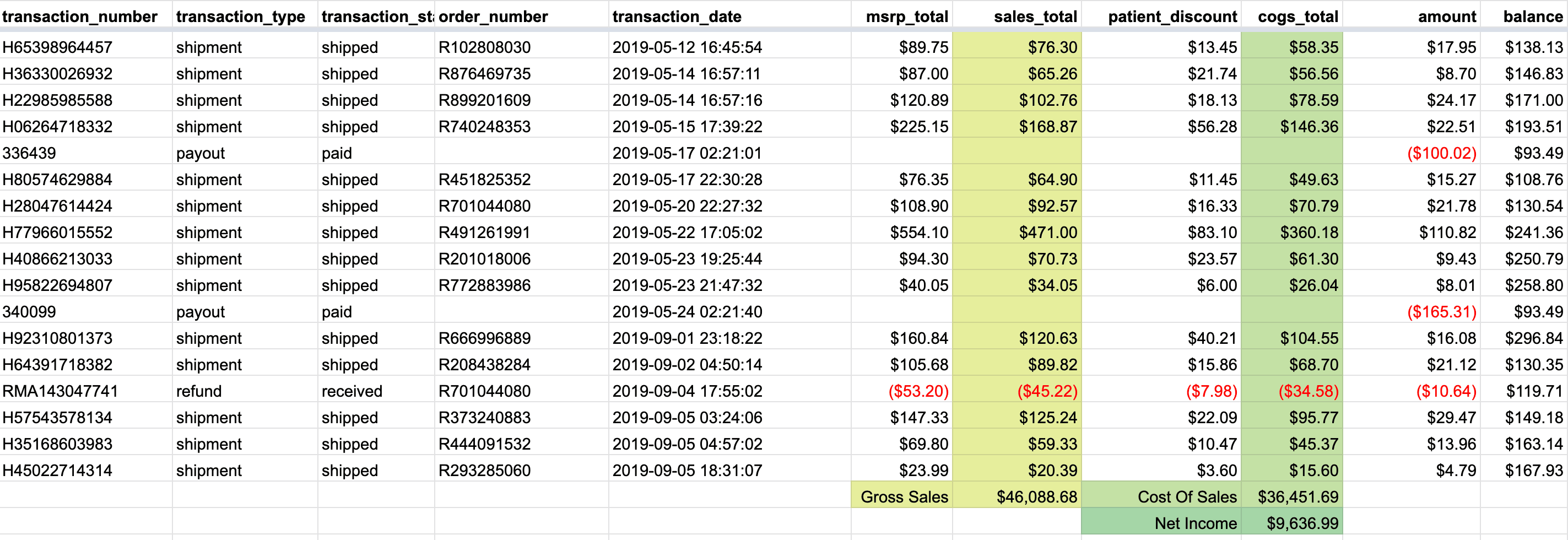
Sample Excel (.xlsx) export of the Account activity and balance report.
Column definitions
Column: Definition
transaction_number: The shipment ID.
transaction_type: Type of record displayed. e.g., payout, refund, or shipment.
transaction_status: The record’s status. e.g., amounts paid (payouts), shipped (orders), or received (refunds).
order_number: Fullscript order number.
transaction_date: The date the shipment was shipped, the refund was received, or the payout was deposited.
msrp_total: Total MSRP (retail price) in the shipment.
sales_total: Represents the total retail cost and is calculated as the MSRP total less the patient discount.
patient_discount: The discount amount ($) applied to the order (i.e., patient savings in dollars).
cogs_total: Fullscript fees representing product cost and fees associated with administering the transaction. Referred to as cost of sales or cost of goods sold (COGS).
total: Represents net earnings from the transaction and is calculated as sales_total less cogs_total. Note: This column is labeled ‘amount’ in a previous version of this report (years 2019 and earlier).
balance: Running balance of funds available for payout.
All terms and definitions in the table above pertain to Fullscript activity only.
For lab orders, custom fees will show 0.00 in the MSRP, COGS, and patient discounts columns. If a custom fee is refunded, 95% of the fee amount is returned.
Step 2: Calculating Fullscript net sales
Net sales represent the total retail value of orders transacted through the account. For this, we sum up the values in the sales_total column. In this example, we see a total of $46,088.68.
Step 3: Calculating Fullscript cost of sales
Cost of Sales represents the costs incurred to complete sales transacted through the account. For this, we sum up the values in the cogs_total column. In this example, we see a total of $36,451.69.
Step 4: Calculating Fullscript net income
Net Income represents total earnings and is calculated by deducting Cost of Sales (Column D) from Net Sales (Column B). In this example, we find a Net Income of $9,636.99.
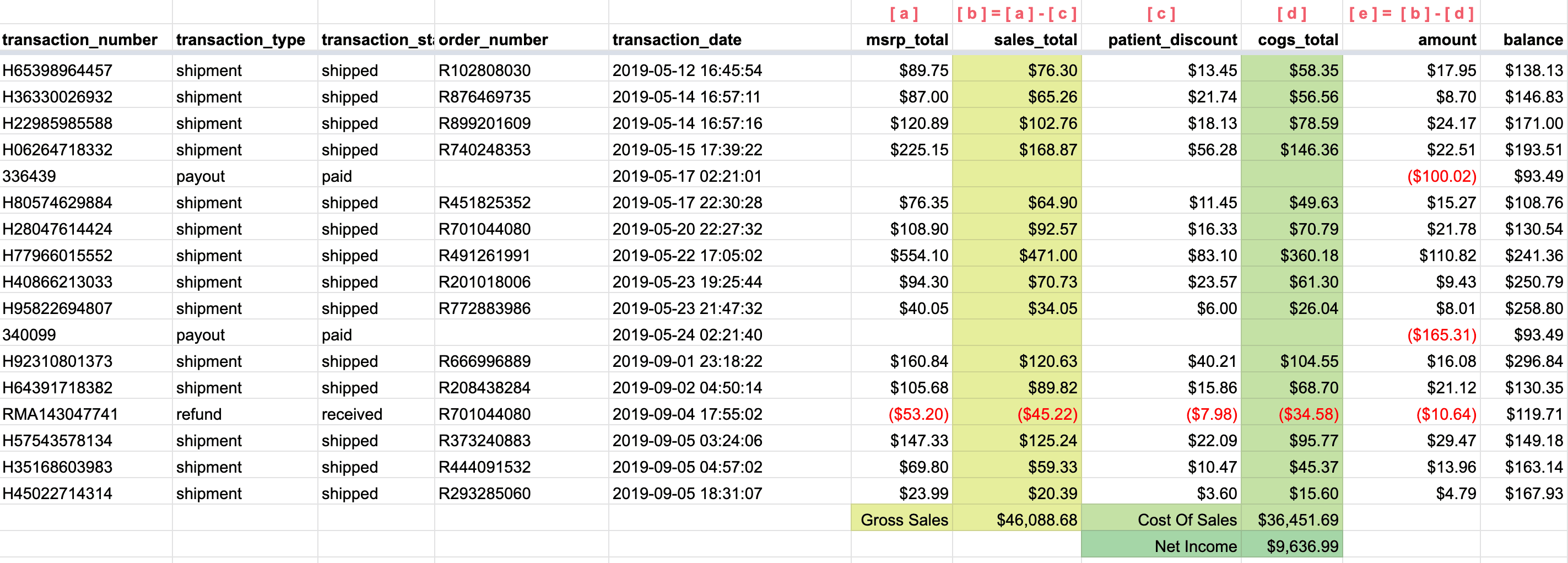
An example of the Account activity and balance report with Net Sales, Cost of Sales, and Net Income calculated.
Sales tax
Fullscript operates as a Marketplace Facilitator whom is required to collect and remit sales tax on behalf of all Marketplace Sellers. Fullscript stores are considered Marketplace sellers.
Fullscript will remit any sales tax collected to the appropriate taxing authorities. Your business may still have sales tax/other tax obligations to fulfill. Your accountant or CPA can assist you in determining what your business obligations are.
Fullscript is committed to collecting and remitting sales tax at the state level, but we don’t currently collect or remit sales tax for home rule jurisdictions with self-administered local taxing authorities (cities, counties, or special tax jurisdictions) that have chosen to collect and administer sales or use tax independently from the state.