
We’ve partnered with top lab companies to give you access to a comprehensive testing catalog that includes both specialty and blood labs. You can explore all available specialty labs directly in the catalog, where you’ll find detailed test information, filtering options, and sample reports.
This guide shows you how to search, filter, and save tests in the labs catalog.
Don’t see a lab company or test on the list? Submit a request to our labs team for a new company or test.
Existing or new lab accounts
You can order from any lab on Fullscript—even if it’s your first time. Registration is quick and easy, so you can start testing without the extra admin.
Already order directly from a lab? Your existing account will be connected with Fullscript automatically. Your existing lab access carries over so you can order, track, and review results from all your lab partners in one place.
How to search the catalog
To start browsing the labs catalog:
- Click Labs in the left-hand navigation.
- Click Catalog.
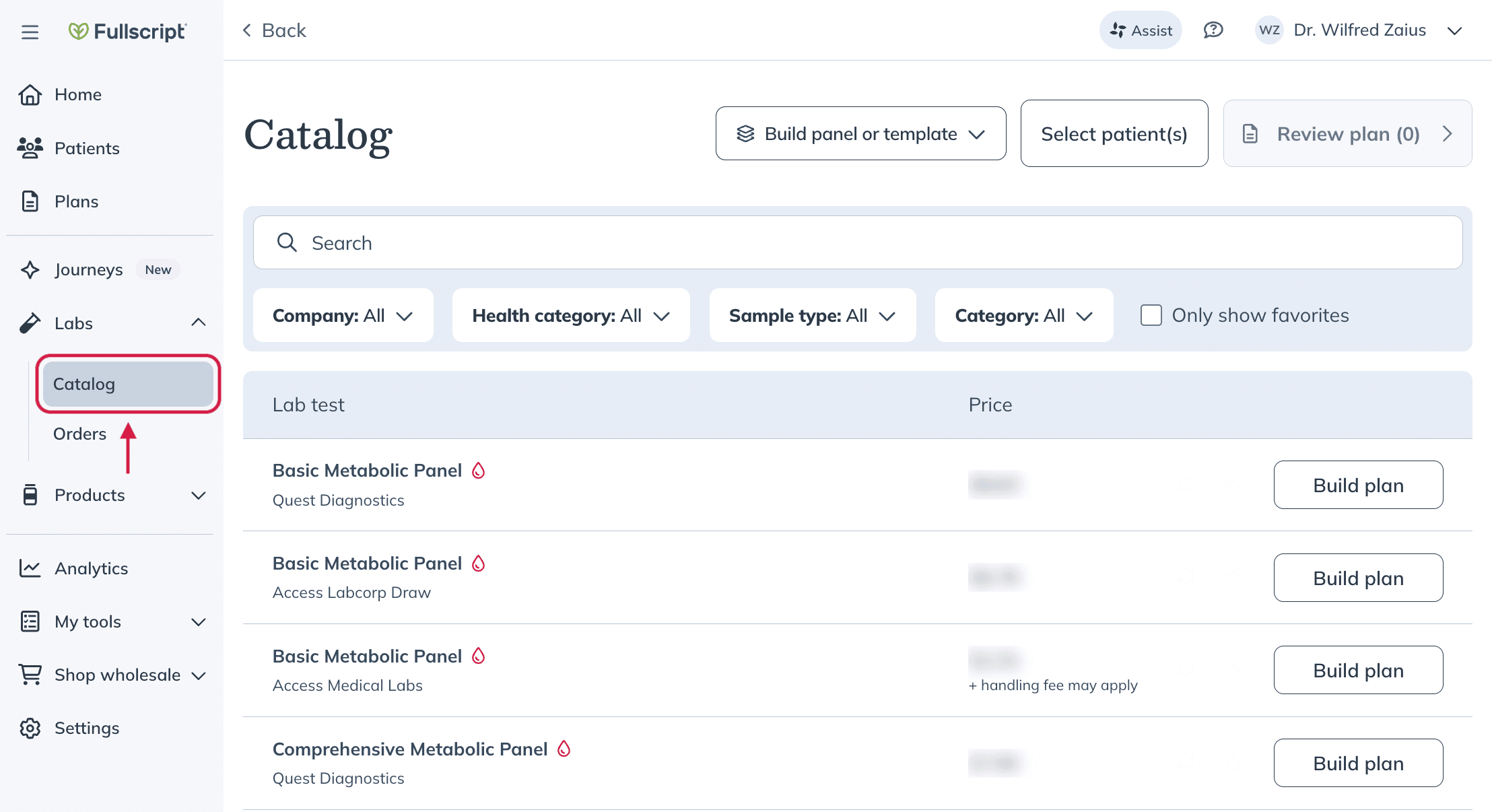
All of your saved Custom panels appear at the top of the labs catalog for quick access when starting a plan.
- Start typing in the search bar to find a lab test. Suggestions appear automatically, similar to the supplement catalog. Select a suggestion or press Enter to search.
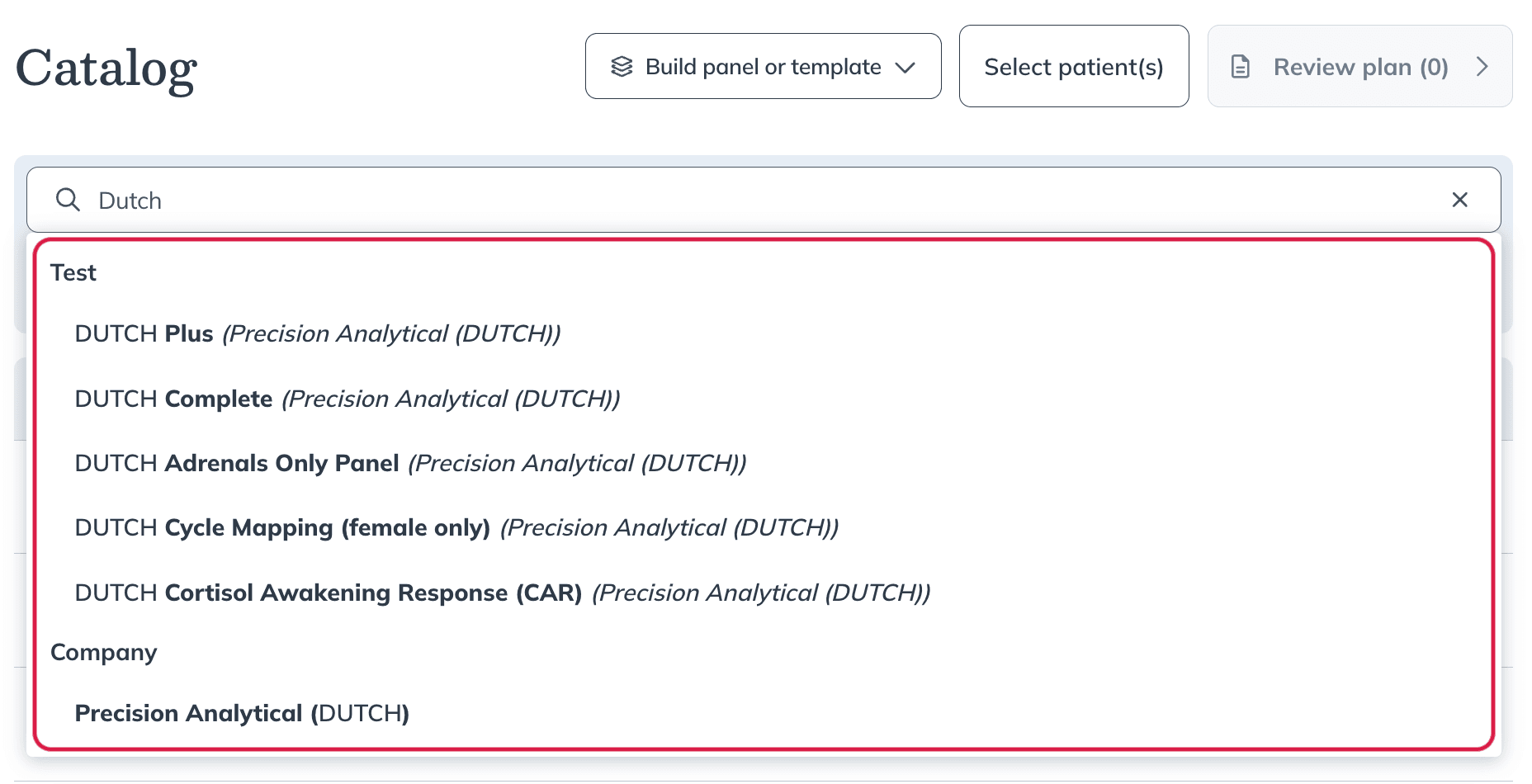
Video: Searching the labs catalog
Search filters
Use the filters under the search bar to narrow your results. You can filter your search results by:
- Lab companies
- Health categories
- Sample types
- Categories (custom panels, templates, etc.)
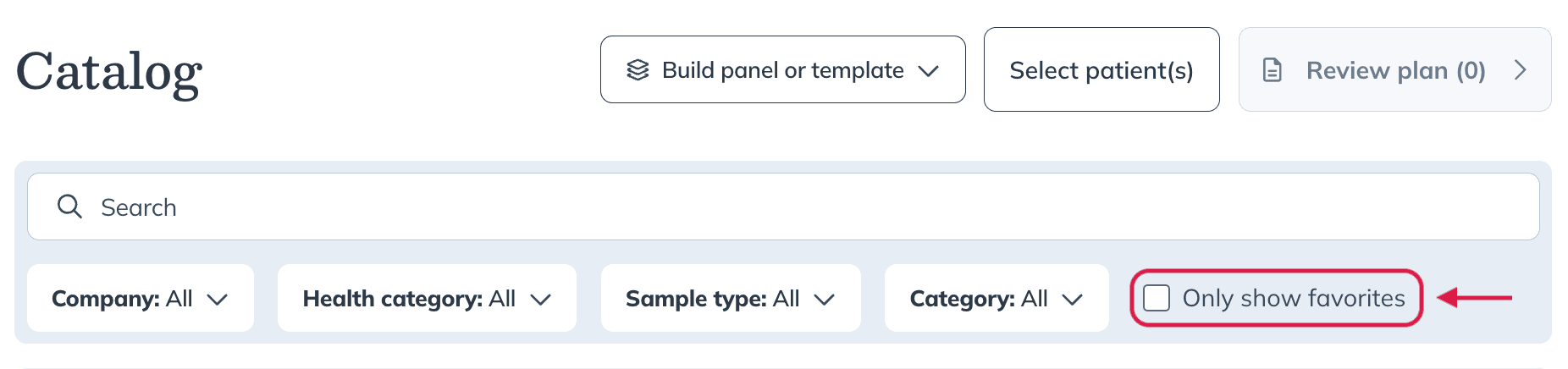
- Favorites
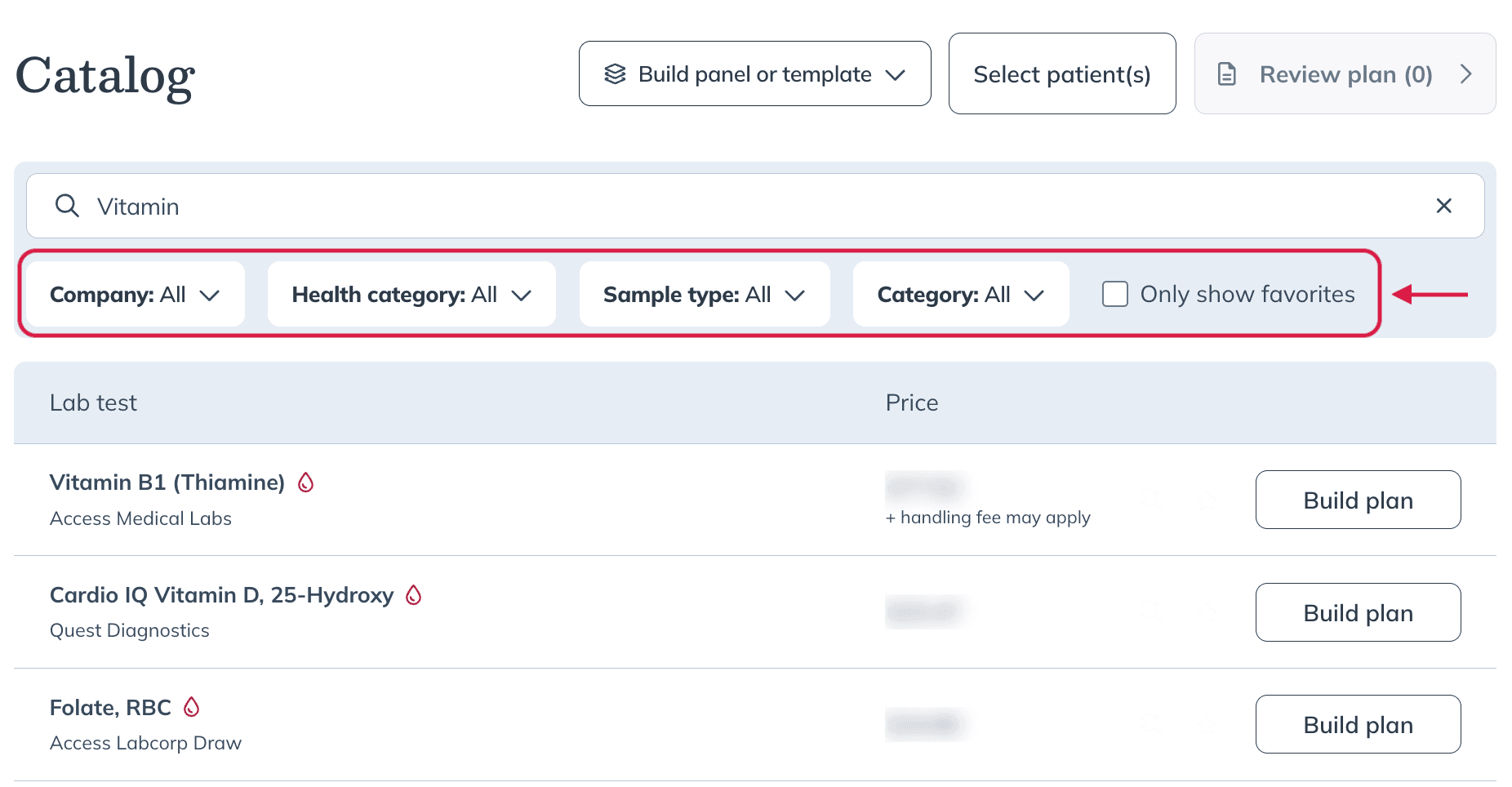
Using results filters in the labs catalog.
Want to compare lab tests side-by-side before adding one to a plan? Learn how in Comparing lab tests.
Test details
Learn more about each test by clicking on the test name. This opens the Test details page.
At the top you’ll find:
- The lab company name.
- Sample type.
- Whether or not fasting is required.
- Testing location options (such as at home or at a specific testing location) and whether phlebotomy is required.
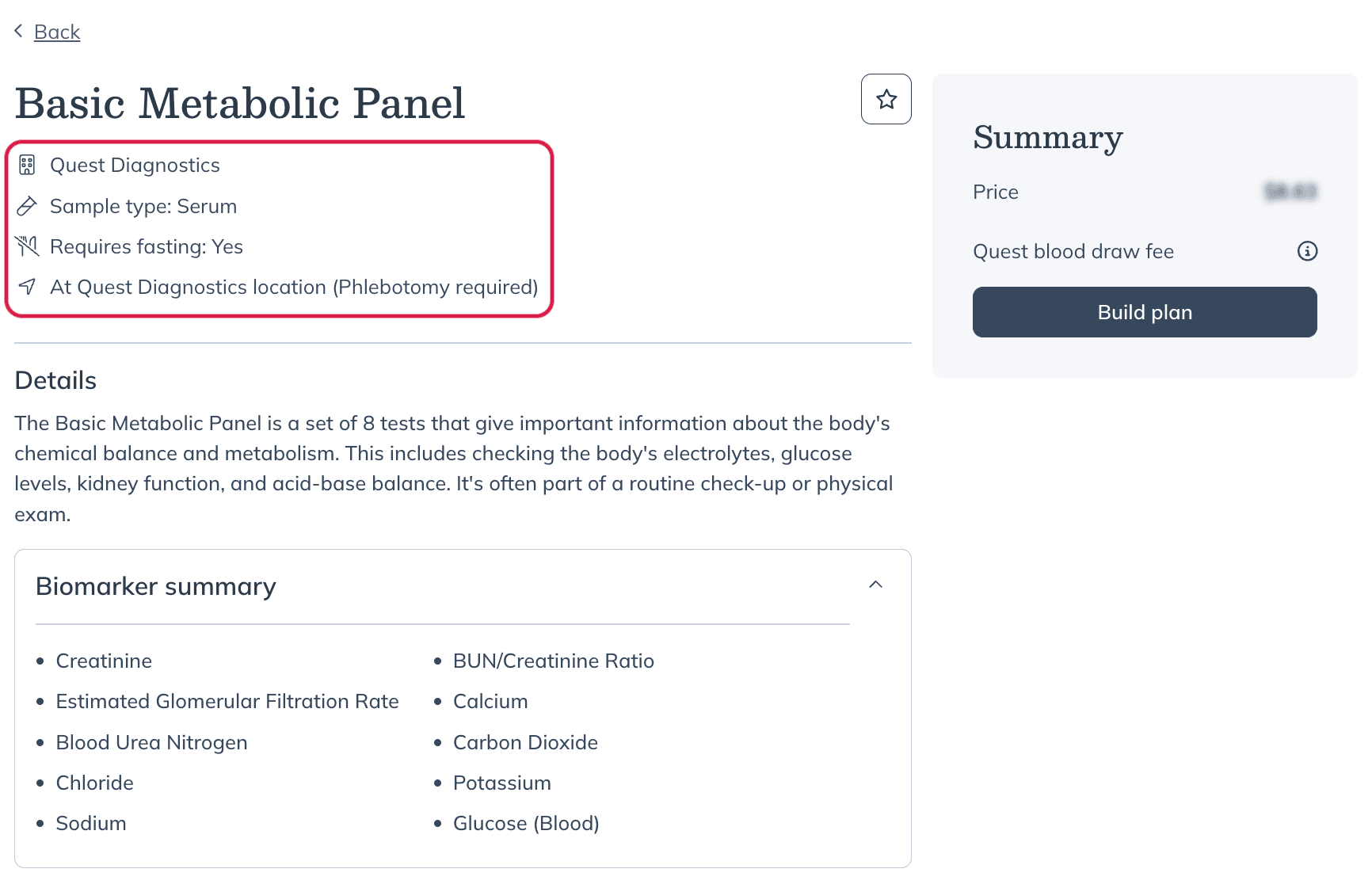
At-a-glance details regarding that specific test.
Below, you’ll find what the test measures, its clinical indications, and resources such as:
- A sample report to visualize the final results.
- The general health categories for this test.
- Additional details, including the average turnaround time for results, the lab’s reference range, and units of measurement.
- Patient instructions, which are sent automatically after testing has been ordered.
- Any patient restrictions based on state and age during our pilot.
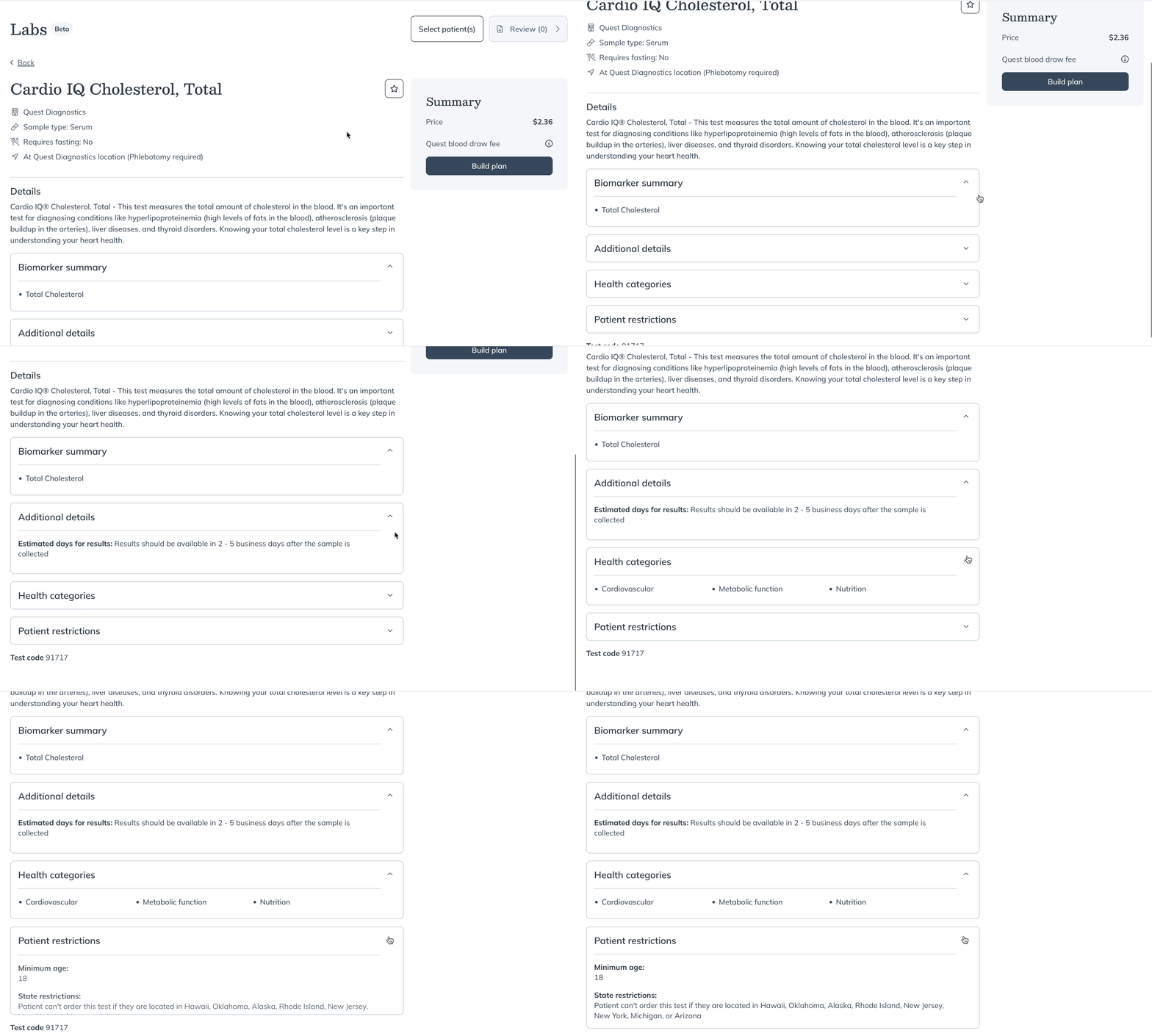
The Test details page, where you can learn more about a specific test.
Favorited tests
If you order a test frequently, star it as a Favorite for quick access in your labs catalog. Build a list of your most recommended tests to streamline your plan building workflow.
To add a test as a favorite:
- Hover over the test line in the catalog and click the star icon.
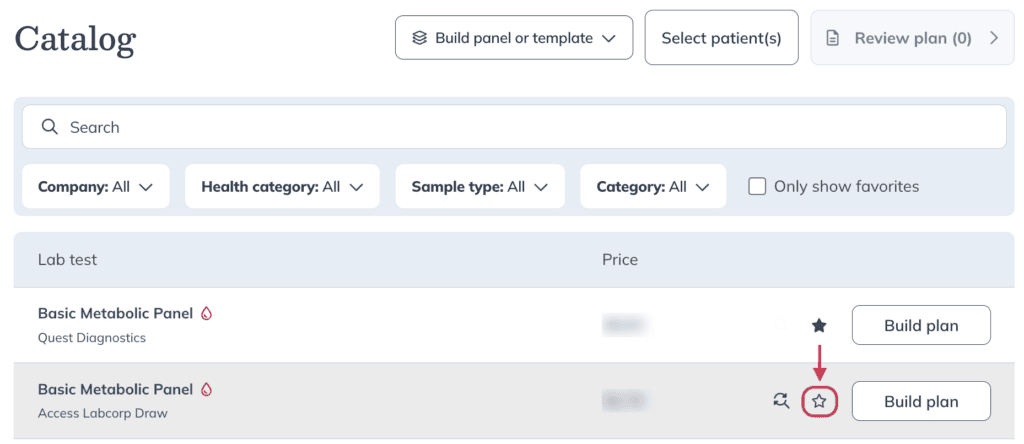
- Once you’ve added your favorite tests, view your entire list by selecting Only show favorites under the search bar.
To remove a test from your Favorites simply click the star icon again when hovering over the test line.