
This report is available to practitioner seller accounts (profit accounts) and can be downloaded from the Reports page after your first successful payout.
This handy report can be downloaded for any tax calendar year (January 1st–December 31st) to assist with general accounting, staff payouts, and tax filing.
Dispensary owners will always have access to view and download dispensary reports. Access can be extended to additional practitioners and staff from the Permissions tab in Dispensary Settings.
What data does this report capture?
This report is a running balance of dispensary sales activity. Through this running total, Net Sales, Cost of Sales (a.k.a. Cost of goods sold, or COGS), and Net Income can be calculated.
Download the Excel (.xlsx) file to have Net sales, Cost of Sales, and Net income calculated automatically at the bottom of the report. However, CSV files don’t include footer formulas.
Downloading the account activity and balance report
This report, and other financial reports, are only available after your first successful payout.
To download the account activity and balance report:
- Click the Analytics tab.
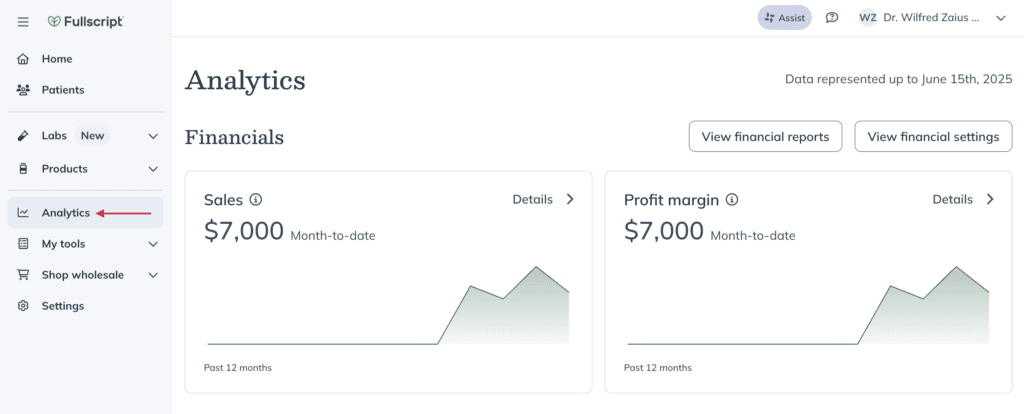
- Click View financial reports.
- Scroll to the Account Activity and Balance Report heading.
- Use the dropdown menus to select a Year and a format to Download as.
- Click Download.
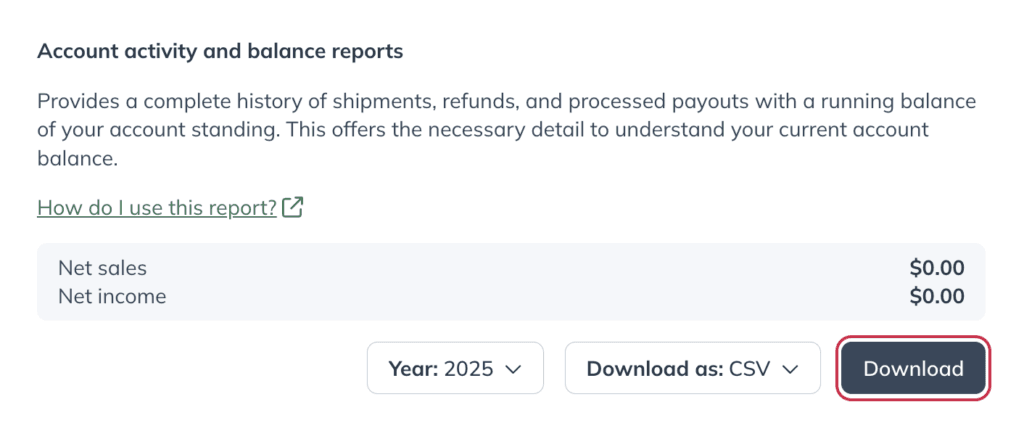
Your report will download to your device in your preferred file format.
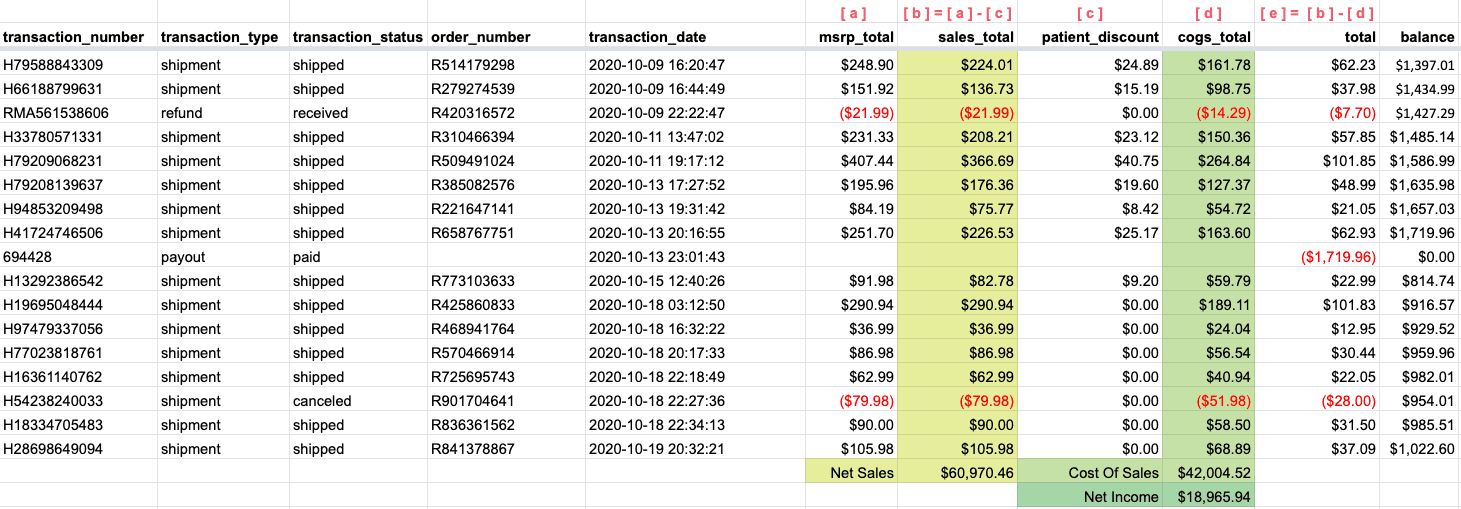
A snippet from an account activity and balance report (excel formatted version).
Select the AABR 2020 v – US (with labels).png attachment at the bottom of the article to enlarge this image.
Net income
Net income is calculated as Net sales (sum of sales_total column) less Cost of sales (sum of cogs_total column).
In the 1099-K Export report, a reconciliation of a dispensary’s 1099-K amount (gross volume) to net income is presented at the bottom of the report. This net income figure is expected to align with the net income calculation in the AABR.
Net sales
Net sales are the sum of your gross sales minus returns, allowances, and discounts.
Cost of sales
Cost of sales represents product cost and fees earned by Fullscript associated with administering the transaction. Also referred to as cost of goods sold (COGS).
Transactions found in the report
Shipments
Shipment rows represent successful or canceled shipments. All order activity is appended to the report at the time of an order’s first shipped shipment (including all earnings). Canceled shipment rows will generate for any products removed from the order after the first shipment (i.e., backorder cancellations).

Shipped and canceled shipments in the account activity and balance report.
Payouts
Payout rows reflect successful payouts.
Payouts appear as a negative value in the total column to withdraw from the dispensary’s available balance.

A payout row in the account activity and balance report.
Refunds
Refund rows are refunds that stem from product returns.
Refunds adjust the balance by negating appropriate columns: msrp_total, patient_discount (if applicable), sales_total, cogs_total, subtotal, and total.

A refund in the account activity and balance report.
Custom fees
For lab orders, custom fees appear with a 0.00 balance under msrp_total, patient_discount, and cogs_total. The sales_total column shows the earnings from the custom fee.

A custom fee in the account activity and balance report.
Report column headings and descriptions
Descriptions of headings found in the account activity and balance report have been provided below to help navigate the report.
Column headings: Description
transaction_number: The shipment ID. (i.e., H95998906904)
transaction_type: The row’s record type. i.e., payout, refund, or shipment.
transaction_status: The transaction record’s status. i.e., amounts paid (payouts), shipped (orders), or received (refunds).
order_number: Fullscript order number. (i.e., R111222333)
transaction_date: The date the shipment shipped; the date the refund was received; the date the payout was paid.
msrp_total: Total MSRP (retail price) of the shipment.
sales_total: Represents the total retail cost and is calculated as the msrp_total less the patient_discount. The sum of this column equals Net Sales.
patient_discount: The total discount ($) the patient received on the order.
cogs_total: The fee earned by Fullscript representing product cost and fees associated with administering the transaction. The sum of this column equals Cost of Sales (or cost of goods sold).
total: Represents Net Earnings from the transaction and is calculated as the sales_total less cogs_total in the US report.
balance: Running balance of funds available for payout.
Additional columns – Canadian reporting only
Canadian reporting has additional columns to accommodate accounts that have opted-in to collect tax on their payouts.
Column headings: Description
subtotal (Canada only): Represents the order’s net earnings to be paid before HST and is calculated as sales_total less cogs_total.
hst(Canada only): HST paid (appended to payout) if the customer provided their business number to collect HST on payouts.
total: Represents net earnings from the transaction and is calculated as sales_total less cogs_total plus hst in the CAN report.
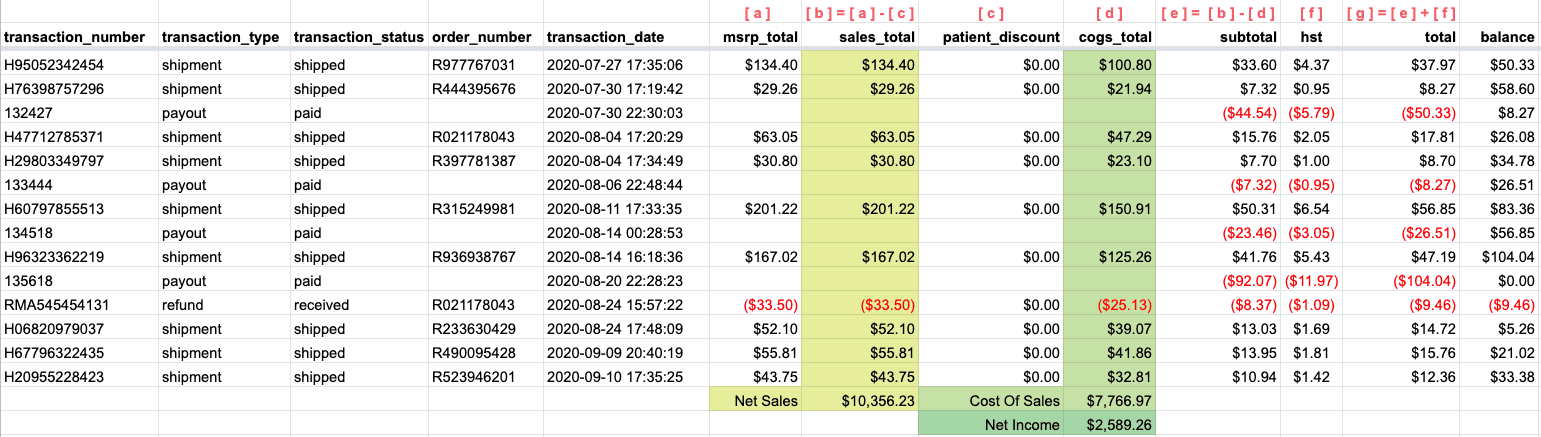
An example of the account activity and balance report for Canadian customers that includes additional subtotal and hst columns.