
Getting started with Fullscript is quick — your provider account is the first step to building a dispensary that supports your patients and your practice.
If you’ve already signed up for your Fullscript account, see Setting up your dispensary for help in setting up your dispensary.
Getting started on Fullscript
Head to our sign up form to create your account.
Our Terms of Service govern your access and use of the websites, mobile applications, and other platforms and services provided by Natural Partners, Inc., Healthy Web Inc., and/or their subsidiaries or affiliated companies.
To sign up for a provider account:
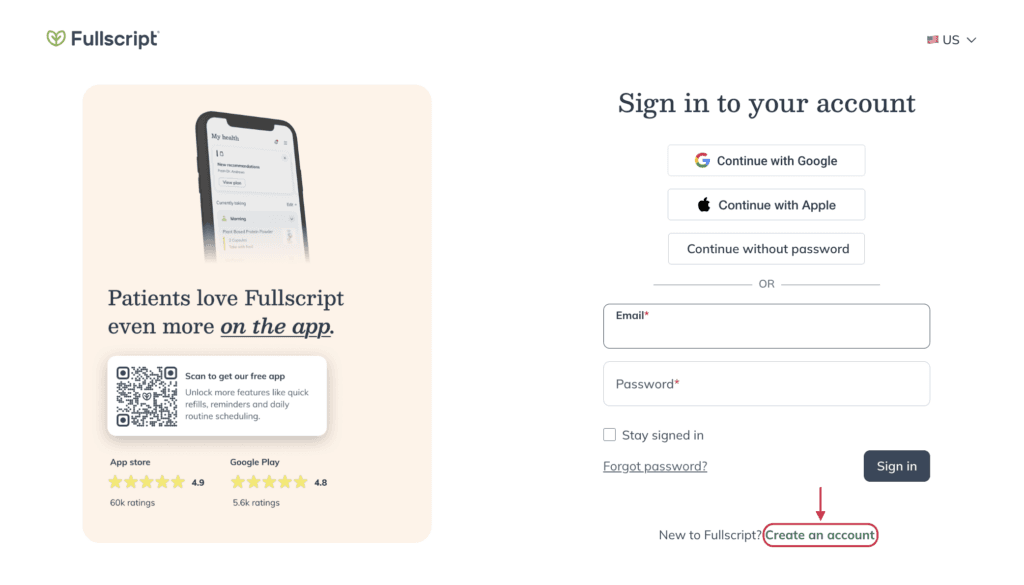
- Click the Create an account button on the sign in page.
- Select Practitioner account.
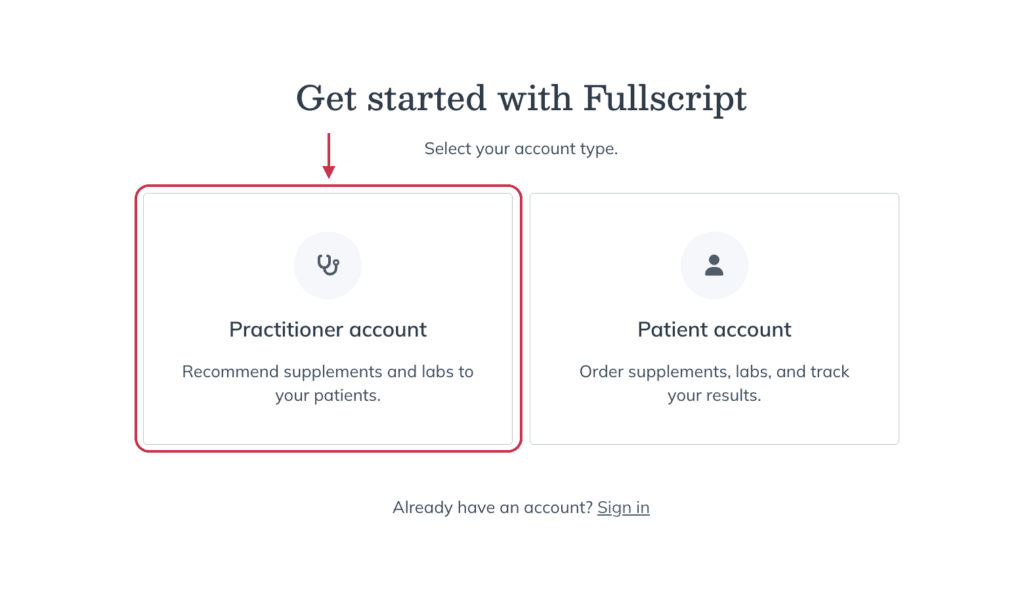
If you’re trying to create a patient account, see Signing up for your patient account.
- Enter your first name, last name, and the dispensary name (i.e., your name or the name of your practice). The dispensary name is visible to patients and can be changed later.
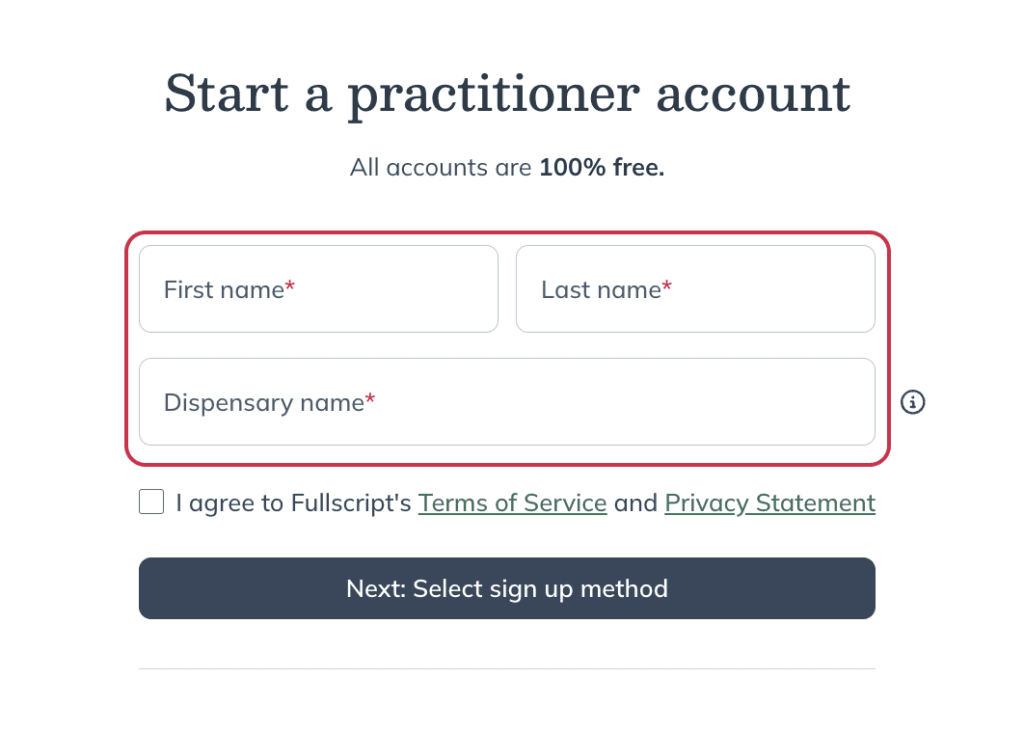
- Click Next: Select sign up method.
- Provide your email address and create a password. Alternatively, you can opt to Continue with Google or Continue with Apple.
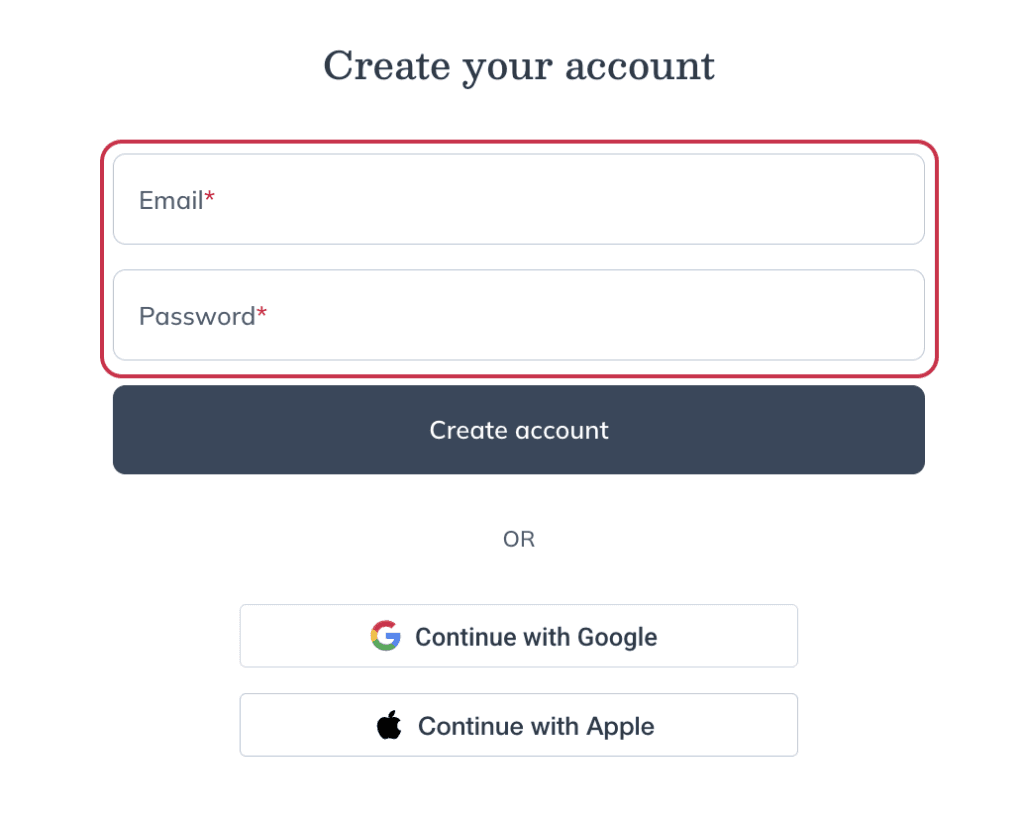
- Click Create account.
- Complete the survey to provide us with some details about your practice and how you plan to use Fullscript.
If you’re a student, click I’m a student to skip the practice questions.
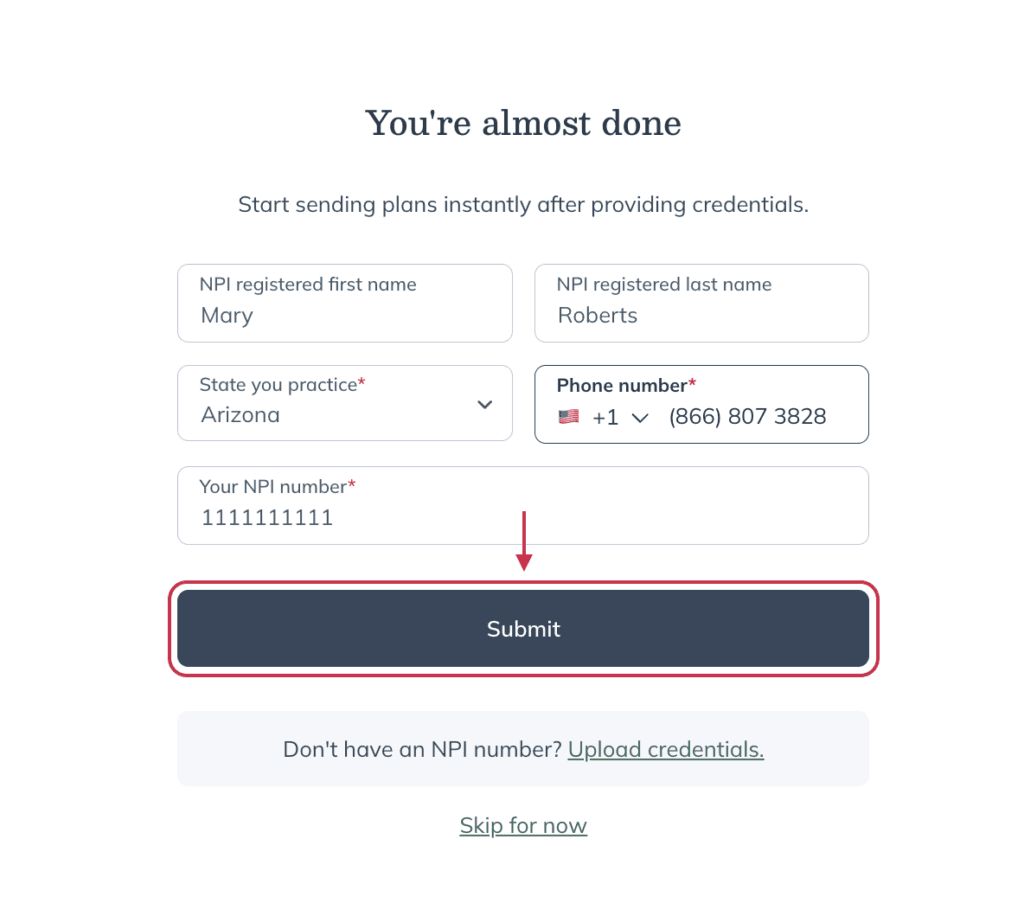
- After completing the survey, provide the state you practice in, your phone number, and your NPI number.
- Alternatively, click Upload credentials to provide a license or diploma instead of an NPI number.
Canadian providers won’t be asked for an NPI number and will be required to upload credentials and select their health profession.
You can skip this step by clicking Skip for now. However, approved credentials are required before any wholesale or patient orders can be placed.
- After providing the required information, click Submit.
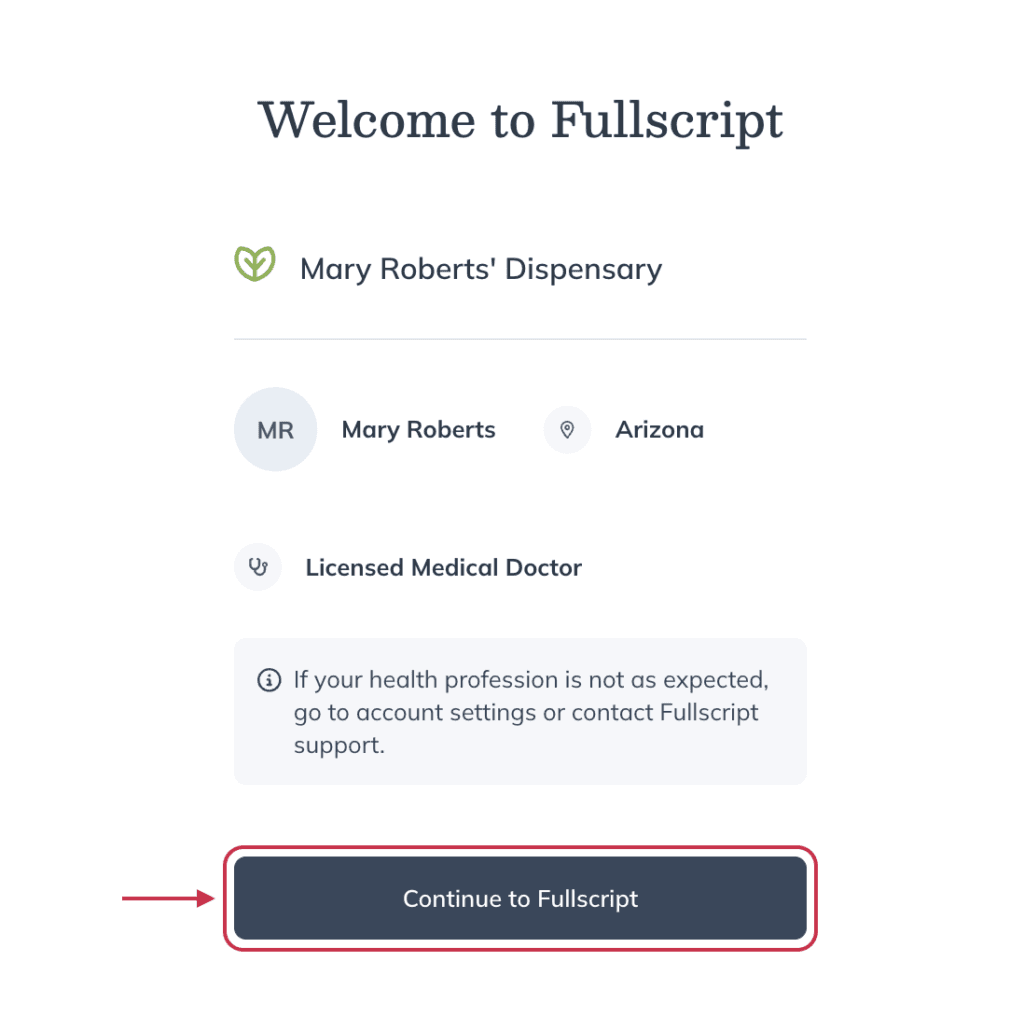
- Review the information populated based on the information provided and click Continue to Fullscript. You’ll be directed to your newly created Fullscript provider account.
Please contact support if you’d like to edit your email address after creating your account.
Signing up under an existing provider account
If you’re a provider that’s not the Fullscript dispensary owner, you’ll need to be invited by the account owner to establish your provider account.
See Adding practitioners and staff members if you’d like to add associate providers to your Fullscript dispensary.
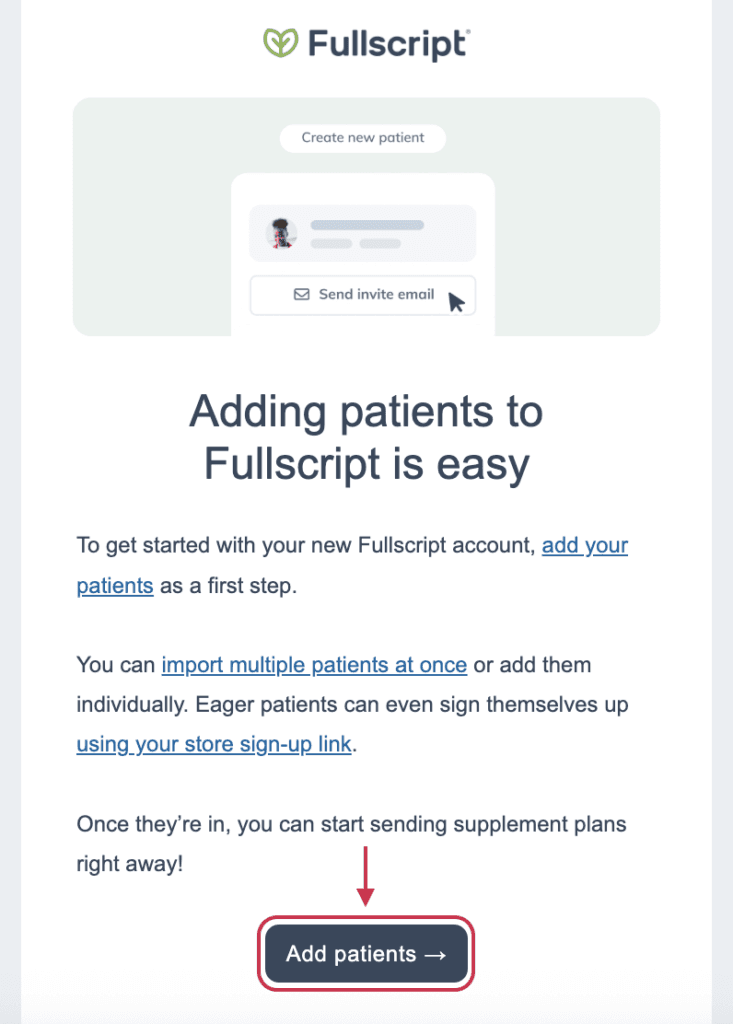
If you’ve received an invitation email from Fullscript:
- Click Add patients in the email.
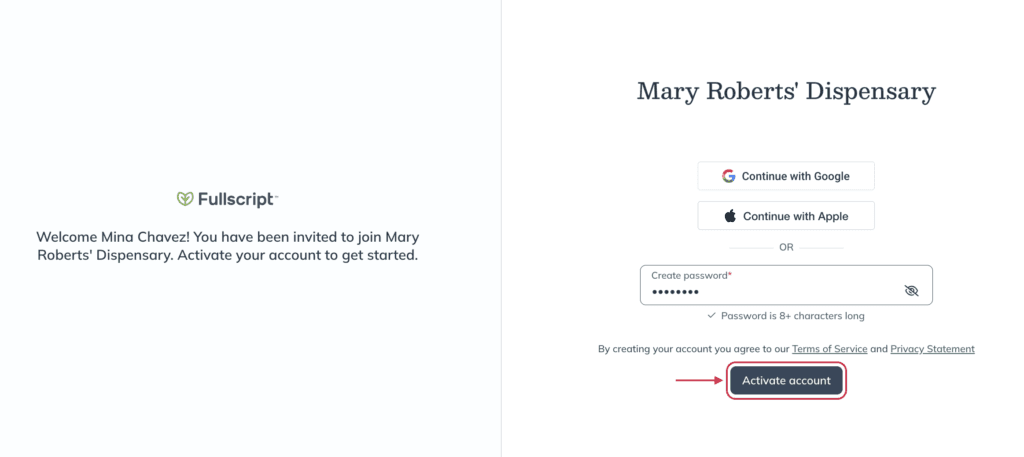
- Create a password in the Create password field.
- Click Activate account. You’ll be redirected to your new Fullscript account to begin adding patients, building plans, and placing wholesale orders.
After completing your sign up
Once you’ve finished creating your account, you’ll want to continue setting up your dispensary to make it functional for your practice and patients.
New provider accounts include a pre-filled Practice Patient so you can test workflows without real patient data. Use it to write a test plan, add items to currently taking, and preview Fullscript Assist insights. The Practice Patient can’t be deleted or converted, some details (name, email, phone) aren’t editable, and in-office checkout isn’t available. Available in the U.S. and Canada.
Book a demo with us to get personalized support setting up your Fullscript dispensary. We’ll walk you through the next steps to help you get the most out of Fullscript.
Here are some helpful resources to help you continue building your Fullscript dispensary.
Your professional credentials:
Setting up a profit account:
- Profit dispensaries
- Dispensary & individual patient discounts
- Video: Onboarding | Setting up a profit account
Connect your EHR:
Find your EHR software here and learn how to integrate it with Fullscript!
Register for labs (US providers only):
- Registering for labs
- Set up a signing practitioner on your account
- Labs catalog overview
- Labs billing and payment